Guided tutorial: from zero to your first proposal
In this tutorial
Goal: create a company, a contact and an item, build a proposal, export the PDF and submit it. · Duration: ~12 min · For: Trainee (and anyone getting to know the CRM).
Before you start
- [x] You are inside your class (you entered through the
?t=…link). - [x] You see the sidebar on the left (Dashboard, Companies, Contacts…).
If you haven’t entered yet, see Getting started - Trainee.
Step 1 · Create the company
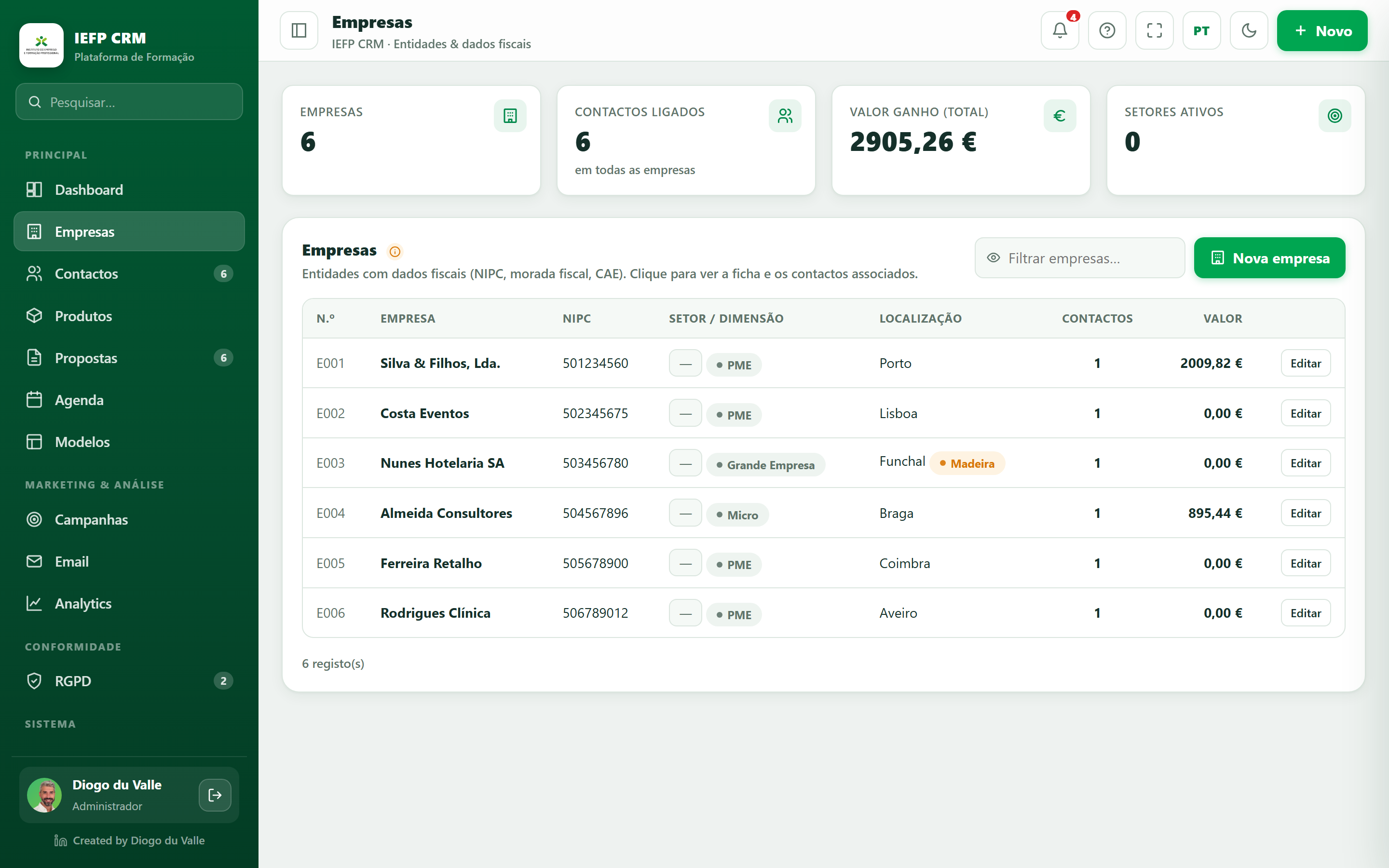
- In the sidebar, click Companies.
- Click + Company.
- Fill in Name (e.g. Hotel Sol & Mar, Lda.) and the NIPC (the app validates it).
- Choose the Region (e.g. Madeira) - it will set the VAT further on.
- Save.
Result
The company appears in the list. Click it to see the 360° view (no contacts yet for now).
📷 Screenshot
Step 2 · Create the contact
- Click Contacts → + Contact.
- First name and Surname (e.g. Ana Costa).
- In Company, choose the one you created; fill in the Role.
- Email, NIF (validated) and the Segment (e.g. SME).
- Confirm the Region (it inherits the VAT logic). Save.
Loyalty
The loyalty level (Bronze/Silver/Gold) belongs to the company - it adjusts with the company's purchase volume and the contact inherits it, giving an automatic discount on proposals.
Step 3 · Create the item (catalog)
- Click Products.
- + Family (e.g. Software) → + Subfamily (e.g. Licenses).
- + Item: name (CRM Pro License), family/subfamily, price (e.g. €79) and VAT. Save.
Why the catalog first?
In proposals, the lines are chosen from the catalog - it ensures consistent prices and VAT.
Step 4 · Build the proposal
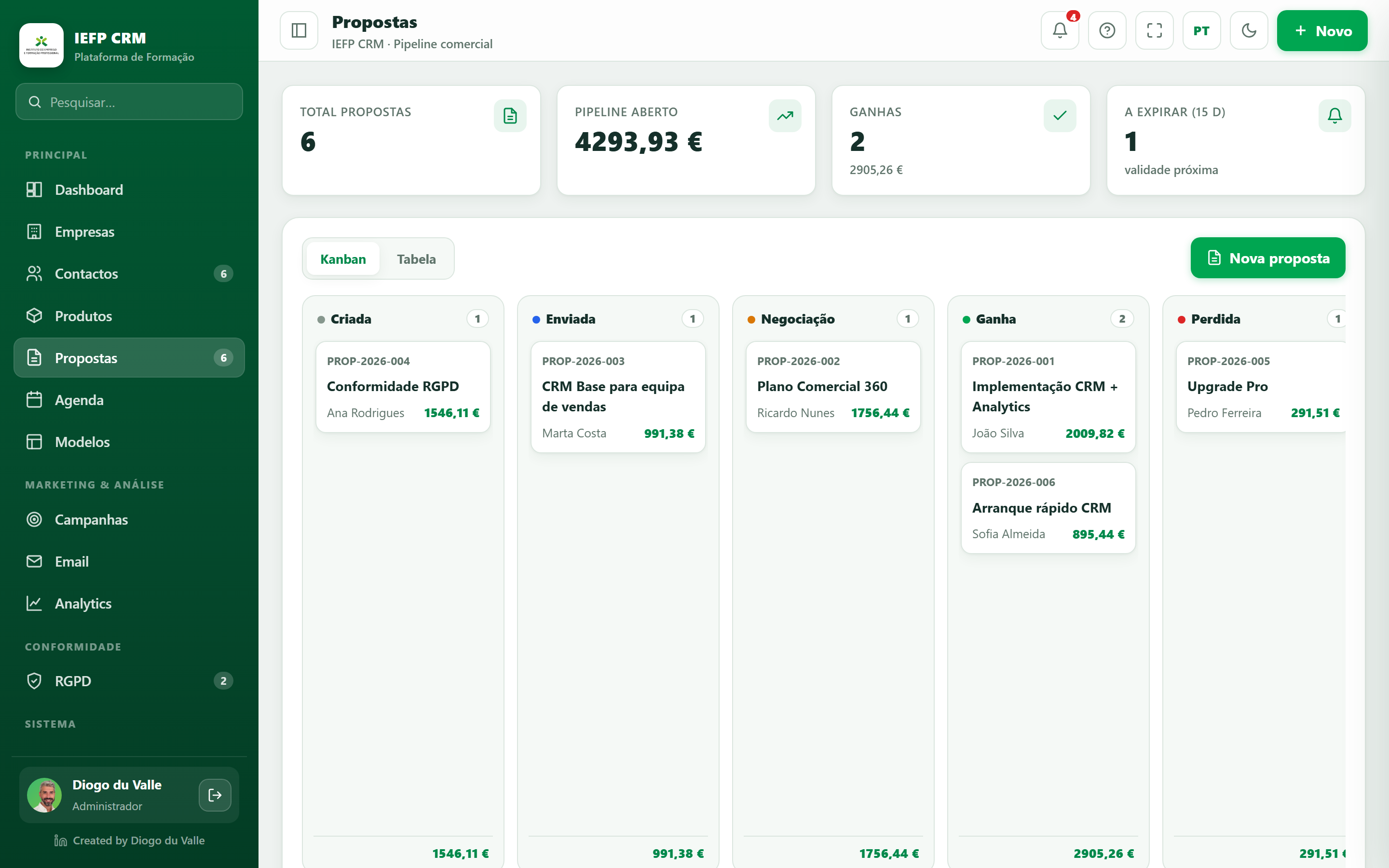
- Click Proposals → + Proposal.
- Company and Contact: choose the company (the anchor of the sale) and the contact Ana Costa - the region's VAT and the company's loyalty discount now apply. Set the loyalty months (SaaS).
- Title: CRM licensing proposal.
- Line: choose the item CRM Pro License → description/price/VAT fill in; set Quantity 5.
- Note the Totals block (subtotal, discount, VAT, total).
- Save.
VAT notice
If the customer’s region doesn’t match the line’s VAT, “Correct to {region}” appears - click it to align.
📷 Screenshot
Step 5 · Export the PDF
- Open the proposal → action bar → Preview (see the A4 sheet).
- Download PDF → in the print dialog, choose Save as PDF.
Document look
The layout comes from the Proposal Template. Try switching templates and exporting again.
Step 6 · Move through the pipeline and submit
- In Proposals (Kanban view), drag the card to Negotiation and then Won.
- Set your signature in your profile (bottom-left corner) - it is required to hand in.
- Click Submit my work → confirm and Submit.
You completed the flow!
You created data, a proposal, a PDF and made the submission - the full cycle of a CRM. 🎉
Next
- Go deeper into each screen in Features.
- Explore GDPR (consents, data subject requests).
- See the Analytics with your proposal already counted.